Connect Instagram to SocialAutoDM: Business vs Creator, Message Access
How to connect Instagram to SocialAutoDM: switch to a professional (Business or Creator) account, turn on “Allow access to messages” in the Instagram app, and approve access on Meta’s own login screen.
In this video
- Why Instagram’s API needs a professional account, and why Business and Creator both work
- How to switch to a professional account in the Instagram app
- Turning on “Allow access to messages” under Connected tools
- Connect Instagram Account, and approving access on Meta’s own screen
- What the connection lets SocialAutoDM do: posts, insights, replies and DMs
- Reconnecting after access expires, and the Disconnect dialog
About this tutorial
SocialAutoDM connects to Instagram through Meta’s official API, which works only with professional accounts, Business or Creator. Switching takes a minute in the Instagram app, under Settings and activity, Account type and tools. Instagram also has a setting, Allow access to messages under Connected tools, that must be on for any connected tool to send messages from your account. You then approve access on Meta’s own login screen, so SocialAutoDM never sees your password. Once connected, SocialAutoDM loads your posts and their insights and answers comments with a public reply and one private DM per comment, following the rules you set on each post. If Instagram stops accepting the connection, your rules pause, you get an email, and Reconnect restores them. One plan covers one connected account, an Instagram account or a Facebook Page, for $3.99 a month.
Transcript
In this video, you'll connect Instagram to SocialAutoDM: the account type you need, one setting in the Instagram app, and the connection itself.
SocialAutoDM works through Meta's official Instagram API, and that API only works with professional accounts. The note under the button says so.
A professional account is either Business or Creator. Both work with SocialAutoDM. A personal account can't connect, because Meta's API doesn't support it.
Switching takes a minute in the Instagram app. Go to your profile, tap More, then Settings and activity. Under For professionals, tap Account type and tools.
Tap Switch to professional account, and pick a category. Then choose Creator or Business, and tap Next.
One setting people often miss is Allow access to messages. While it's off, no connected tool can send messages from your account.
To turn it on, go to your profile and tap Menu. Open Messages and story replies, then Message requests. Under Connected tools, turn on Allow access to messages.
Now, back in SocialAutoDM. Your plan covers one connected account: an Instagram account, or a Facebook Page.
Click Connect Instagram Account. It takes you to Meta's own screen.
There, you sign in to Instagram if you need to, and approve the access SocialAutoDM asks for. Your password stays with Instagram.
And you're back, connected. Your account is listed under Connected accounts, with your plan.
With the connection, SocialAutoDM can load your posts and each post's insights.
It can also answer comments and send DMs, following the rules you set on each post. This post already has one.
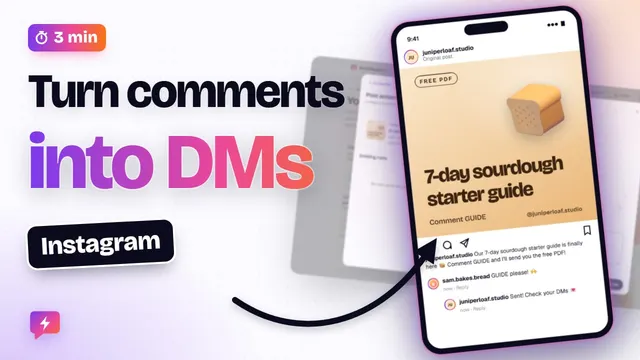
When someone comments RECIPE, it replies publicly, and sends a DM with the link.
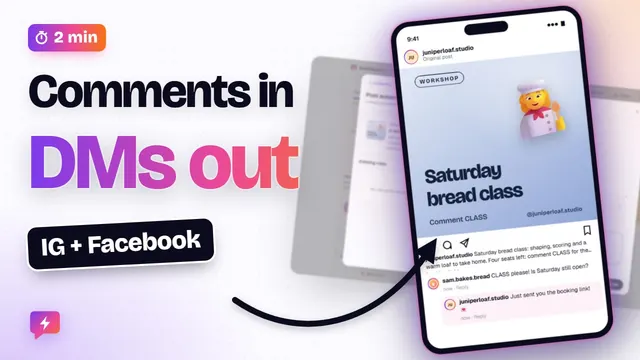
Here's what your follower sees: their comment, and your public reply under it.
Then the DM with the link. Meta allows one private reply per comment, so each comment gets one DM.
If Instagram ever stops accepting the connection, because access expired or was revoked, your rules pause, and you get an email.
Click Reconnect, approve again on Meta's screen, and your rules pick up where they left off.
To switch to a different account, click Disconnect. It always asks first.
Cancel keeps everything as it is.
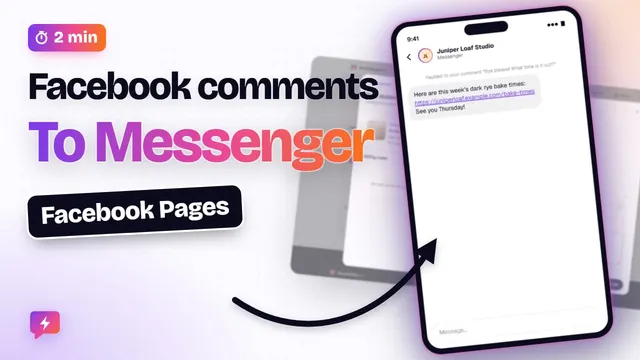
That's Instagram connected. Next up: Facebook Page comments, answered automatically in Messenger. See you in the next video!
Instagram’s steps are shown as text from the Instagram Help Center; menus can differ slightly between app versions. The bakery in this video is a fictional demo account.